
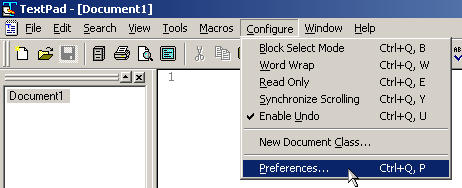
- Click on Configure menu & choose Preferences
- Click on File on the left side menu
- "Number of recent files on File menu" = 9 (or whatever number you'd like)
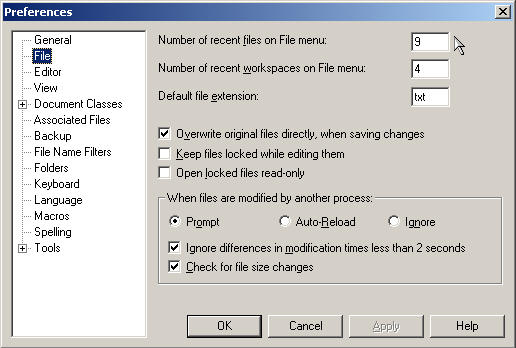
- "Number of recent files on File menu" = 9 (or whatever number you'd like)
- Click on View on the left side menu
- Check box next to "Line numbers"
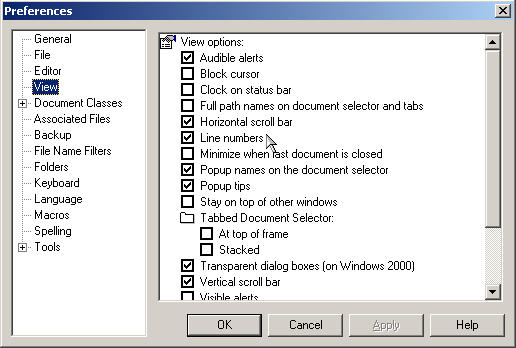
- Check box next to "Line numbers"
- Click on the + next to Document Classes on the left side menu, so that there is a submenu under Document Classes
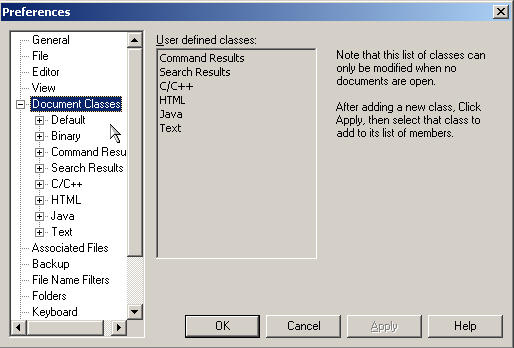
- Click on Default on the left side menu, under Document Classes
- "Create new files as:" = UNIX
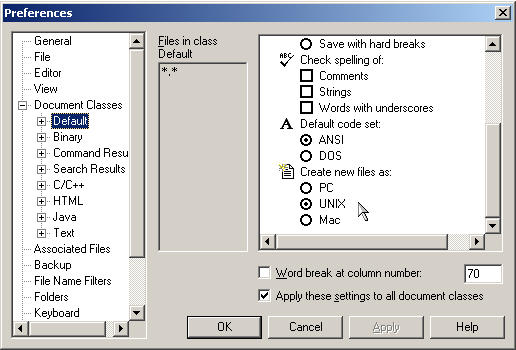
- "Create new files as:" = UNIX
- Click on the + next to Default, so that there is a submenu under Default
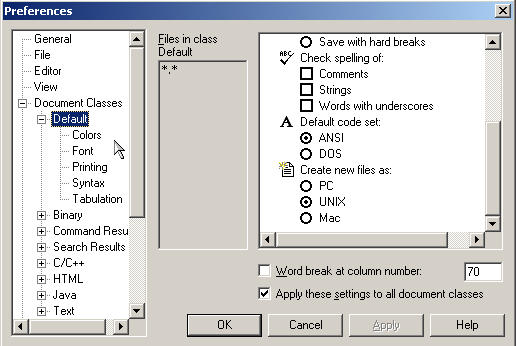
- Click on Tabulation, under Default
- "Default tab spacing" = 2
- "Indent size" = 2
- Check box next to "Convert new tabs to spaces"
- Check box next to "Convert existing tabs to spaces when saving files"
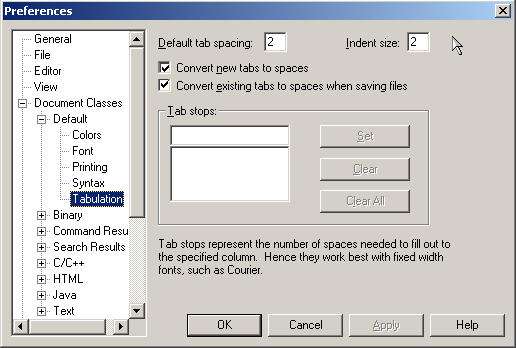
- Click on OK to close Preferences